Create from a description
Describe the subject, setting, style, and lighting. Choose the image shape and one or more models to generate your starting images.
Write your prompt ↗ MultipleChat/Image Studio
IMAGE STUDIO
Create images with AI, compare different models, and take your favorite direction further. Edit with a text instruction or remove the background, all in one workspace.
Explore before signing in. Generation and editing require an active Pro or Smart plan.
Choose from 7 image models, including
 GPT Image
 Nano BananaIdeogramRecraft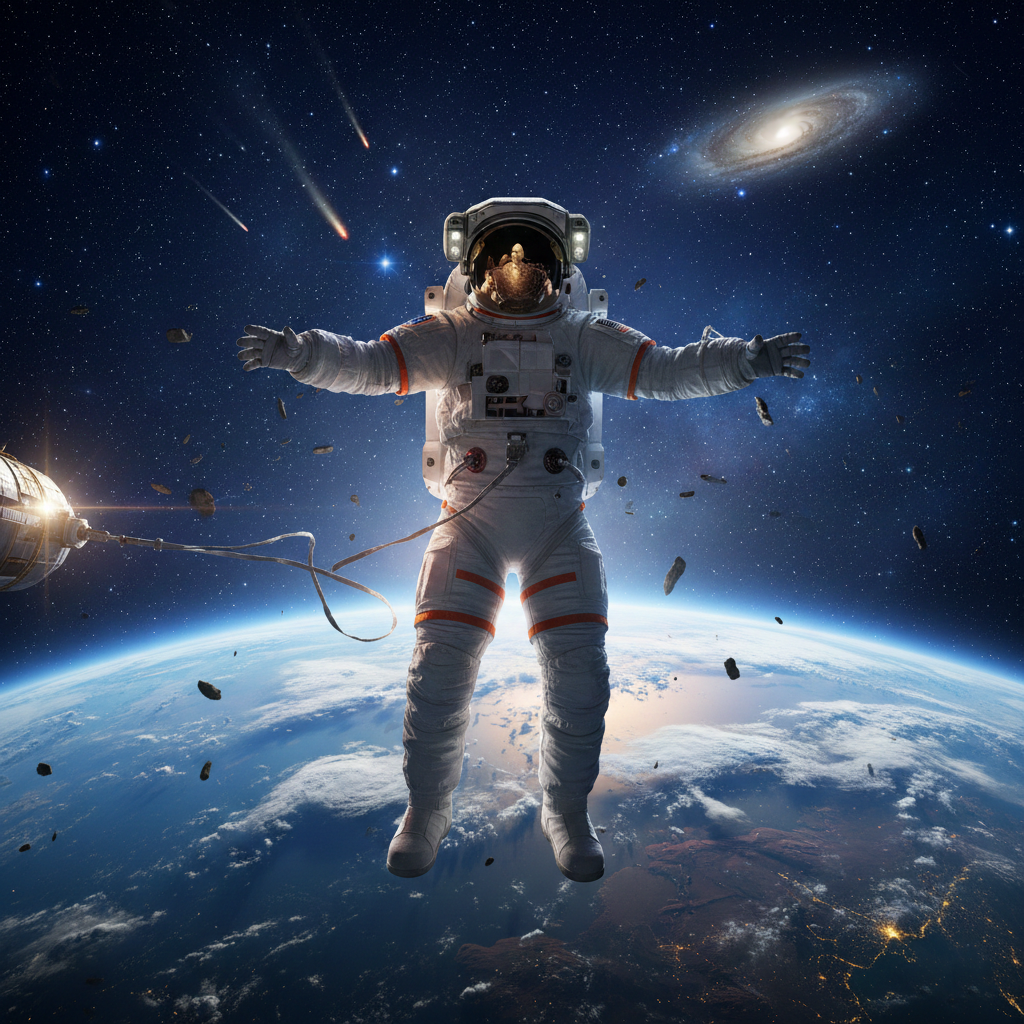
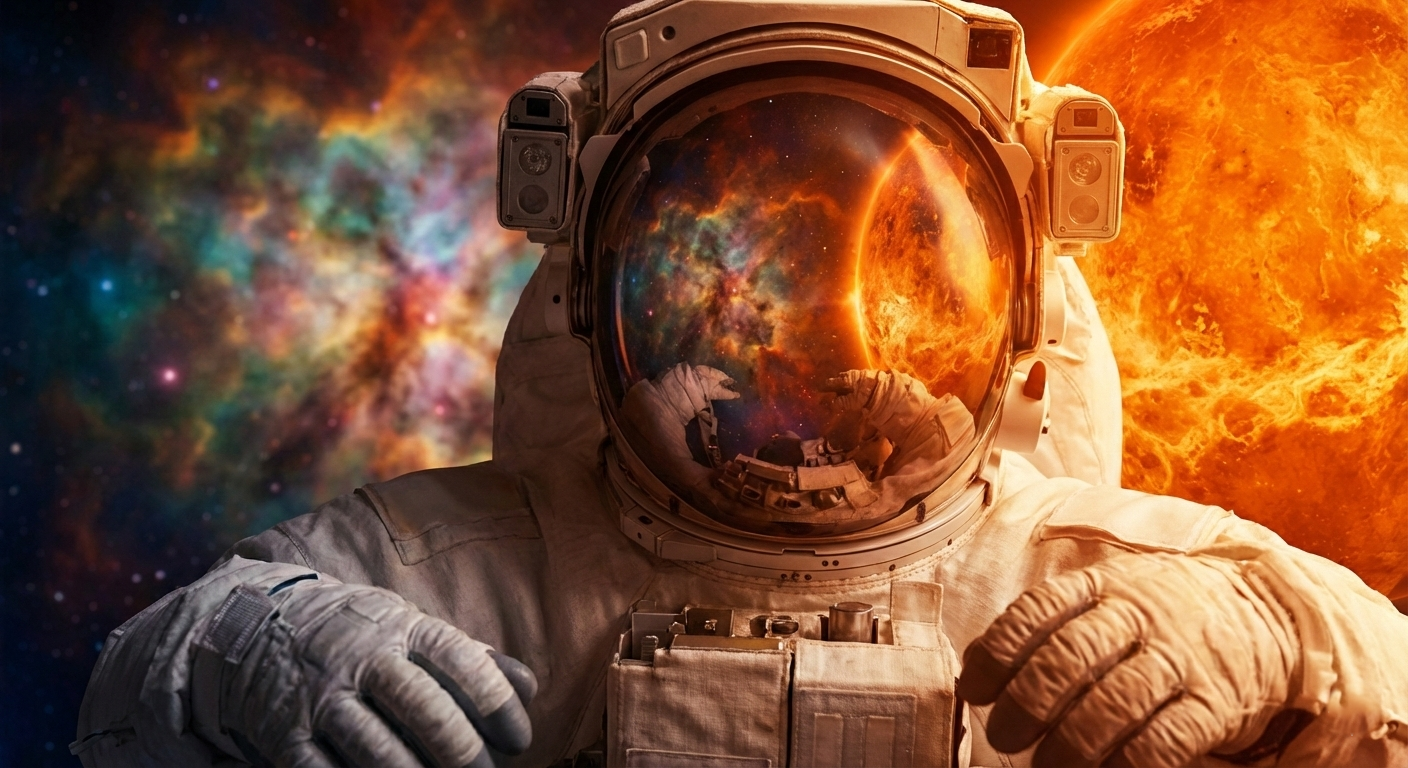
“An astronaut above Earth. Cinematic light. A sense of possibility.”
Make the prompt your own ↗Existing gallery examples for inspiration. New results depend on your prompt and selected models.
CREATE. COMPARE. KEEP REFINING.
Explore an idea from several angles, then work on the image you want to keep.
Describe the subject, setting, style, and lighting. Choose the image shape and one or more models to generate your starting images.
Write your prompt ↗Send the same prompt to up to 5 models. View their independent results together and decide which direction suits your brief.
See how comparison works ↗Upload an image and describe what to change: its colors, background, lighting, or style. Choose GPT Image or Gemini Flash for the edit.
Open the image editor ↗Isolate the subject from its background and download a transparent PNG to use in your next design.
Remove a background ↗Use a result as the next input and apply another instruction. Compare the original and edited image, and revisit edits in the current session.
Start refining an image ↗Download results or move a generated image into the editor. Your recent results are available for 24 hours, so download anything you want to keep.
Check formats and limits ↗MULTIPLE MODELS. YOUR CREATIVE CHOICE.
Pick one model for a focused run or select several to compare their interpretations of the same idea. Each selected model generates its own image and adds to the total token cost.
Image Studio supports model comparison. For a workflow where one AI drafts and another reviews, explore Document Studio’s AI collaboration.
Keep the prompt the same across the selected models.
Explore different interpretations in one workspace.
Take the image that fits your goal into the next step.
GIVE YOUR NEXT IMAGE A DIRECTION
Prepare your prompt and choices here. They’ll open in the studio after sign-in.
Upload your image after sign-in. Keep the instruction specific, such as changing the background or giving the image a different visual style.
PNG, JPEG, WEBP, GIF · Up to 10 MB per upload
Upload an image in the studio, choose Remove Background, and download the transparent PNG. This action uses 15,000 tokens.
PNG, JPEG, WEBP, GIF · Up to 10 MB per upload
FROM A FIRST IDEA TO A FILE YOU CAN USE
Start with a written prompt to create an image. To edit or remove a background, upload an existing image in the studio.
Select an image model, compare several models, or choose an editing action. Review the token cost before running it.
Compare the results, make further edits if needed, and download the images you want to keep.
KNOW WHAT TO EXPECT
Generation prompts can contain up to 1,000 characters; edit instructions up to 2,000.
Upload PNG, JPEG, WEBP, GIF images up to 10 MB, 16 megapixels, and 8,192 pixels per side. GIF input is processed as a still image.
Download generated or edited images. Background removal produces a transparent PNG. Choose from 5 image shapes when generating.
Recent results are available for 24 hours. Download the files you want to keep.
Explore the page and prepare prompts without an account. AI generation, editing, and background removal require an active Pro or Smart plan, including the corresponding team plans, and available tokens.
AI image actions are unavailable during free trials. Compare plans ↗
The studio currently offers GPT Image, SD3, Leonardo, Ideogram, Recraft, Nano Banana, Nano Banana Pro. Choose one or select up to 5 models to compare their results.
You can compare independent images from multiple models using one prompt and carry a result into the editor for further changes. Image Studio does not have Document Studio’s cooperative draft-and-review mode.
Yes. Upload a supported image and describe the change. Choose GPT Image or Gemini Flash, compare the original with the result, and use that result as a new input for another edit.
Yes. Upload your image and choose Remove Background. The result is a transparent PNG you can download and use in another design.
You can explore models and prepare your prompt here for free. Running AI image generation, editing, or background removal requires an active Pro or Smart plan and uses tokens. These actions are unavailable during free trials.
Start with a prompt. Explore the possibilities.